Attitude is a powerful thing, and it's important to UPLIFT students during distance learning when we can all feel a little glum!
To combat my classroom Debbie Downers, I started a Moodlifter Monday video segment. Basically, I played a humorous or thought-provoking video while my class watched & ate their morning snack.
First, I set the stage for the video clip and stressed the importance of keeping a positive attitude even during times of adversity, and then played the funny reel. My students LOVED getting in on the action and really enjoyed finding clips for me to share based on something they had created or found online.
During this time of distance learning and the pandemic, you can share a slide with your students through your shared screen on ZOOM, Google Meets or Google Classroom, etc.
As you can see, there's an attached video clip (in the bottom right corner) for students to watch. In this example, I have shared a humorous animal video clip from a search on YouTube. I also recommend Kid President and Ellen for more great material!
sharing a joke of the day(can be changed to thought or quote of the day)
sharing a bitmoji image(can be changed to a giphy.com or selfie)
Ask a check-in question through the Classroom stream, a shared Slide or Form (example: What's something fun you did yesterday?)
As an educator, I'm always considering the needs of how to make the curriculum accessible for my struggling readers. Now more than ever, it is important these students get the help they need in the form of these technical tricks:
Read&Write for Google Chrome™ provides personalized support to make documents, web pages, and common file types in Google Drive (including: Google Docs, PDF & ePub) more accessible. It's designed to help everyone engage with digital content in a way that suits his/her abilities and learning styles. Here are some of the accessibility features:
text-to-speech to hear words, passages or entire documents read aloud (with easy-to-follow colored highlights)
text and picture dictionaries to see the meaning of words explained
speech-to-text to allow dictated writing
word prediction to help with spelling
As you can see, these features work wonders to help your English language learners, dyslexic, and below-level readers access a grade-level text passage!
#2 - Insert Audio Recordings into Google Slides Presentations
When teaching a reading lesson, I typically help scaffold my students to digest and comprehend the text to apply the new information learned. Well, when no longer in a face-to-face classroom, students have to decipher through a lot of text on screens. One way to make the information more accessible (as many educators use in classroom) is through showing an engaging video clip or tutorial on the concept. As a 4th grade teacher, my students really enjoyed watching video clips from BrainPop or Flocabulary to bring the content to life!
However, there are certain teacher tidbits I like to share with my students based on my years of experience. So I found that using the voice recorder app on my phone, then uploading the files to my GoogleDrive I was able to add my words of wisdom to the presentations I share on Google Classroom.
After you have uploaded your voice recording onto your Drive, then go to the desired slide in your Google Slide presentation and click INSERT -> AUDIO.
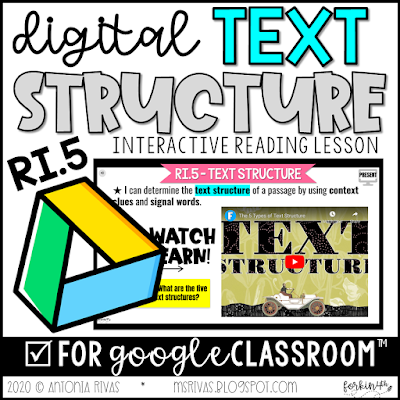
I watched the video linked above and used a Screencastify recording I made in my Text Structure lesson to explain how the interactive features work on my presentation (requiring students to toggle back and forth between edit and present mode).
You can also have your students use Screencastify to narrate a presentation they created with Google Slides and turn it in via Google Classroom for you to grade as you would an oral presentation in person. Just share a quick tutorial video with your students and families like the one linked above!
Even before our schools closed because of COVID19, I have been a huge advocate and user of Google Classroom to engage learners and improve 21st century skills in the classroom! Yet, at this time, Google Classroom is such a convenient way to continue learning during our school closures! Not only has Google provided a way for us to connect through our devices, but they've done it for FREE and other educational websites are offering free access to their resources too!
While the pandemic and change can be stressful, you don't have to reinvent the wheel with the amount of free and ENGAGING resources that are available to work compatibly with Google Classroom. If you haven't heard of flocabulary.com before, then you may not teach above 2nd grade. Flocabulary offers an abundance of original hip-hop song video resources to explain grade-level concepts and social-emotional skills to students!! Most are geared to 8 year-olds and up, but they've been expanding their library and reach each year. Here's their latest & timely video about the importance of handwashing:
My students and I LOVE watching a flocabulary video clip to emphasize various science, math, and even those drier ELA concepts. It really brings the academic content to life in front of your student's eyes and truly captivates them with the catchy lyrics and humorous animation. Because of school closures and the switch to distance learning at home, flocabulary.com is offering a 60 day free trial to their resources.
The BEST PART is if you already have Google Classroom setup for your students, you can easily create assignments for your students straight from Flocabulary. Once you've linked your Google Classroom account onto your flocabulary sign-in, you are able to create Google assignments and require students to watch a certain video you've found and then take the quiz (or study the vocabuary flashcards, play lyrics lab, there are truly a wealth of options!) Personally, I just require the video and the quiz. Linking your Google Classroom account can be done in the three easy steps seen above in my picture tutorial!
There are two apps I tend to use more than the others on the Google Suite for Education platform. SLIDES is definitely my go-to! I use it for creating lesson plans throughout the week, it helps me manage student transitions into and out of the classroom, and it allows me to be the most creative. Here's a look at the SLIDES resource I display when students enter the classroom. How can my Digital Morning Message SLIDES be used for distance learning? Well, you can edit it to share your learning agenda for the day and snip the image to paste into your Google Classroom assignment description. Or, you can used it along with your recorded lesson through Hangouts - using as a starting point to get you going! If you're looking for free tips on how to EDIT and customize your GOOGLE SLIDES, access the product preview on TPT!
When creating a lesson to share with students, I often create a SLIDE presentation and embed videos (from reputable & age-appropriate sources like Flocabulary or NatGeo Kids), my bitmoji images, and giphy animated stickers to increase engagement. When requiring the students to interact with the content, I prefer to share the slide and select MAKE A COPY FOR EACH STUDENT so they are able to add their edits to the document freely without affecting anyone else's work or my master file. This is important to keep in mind, because if you share the SLIDE so all students can edit, then be prepared to end up with a document that has completely changed!
I've shared this resource on my store, geared toward 3rd and 4th grade students. This free lesson includes my GOOGLE SLIDElesson for students to interact with, watch a video. Then, there's an auto-grading check for understanding made with Google Forms. It allows students to apply their understanding of the reading skill by answering multiple choice questions by referring back to the text and making connections with a relevant educational video clip! If this sounds like something you could use with your students, click the picture above for this freebie!
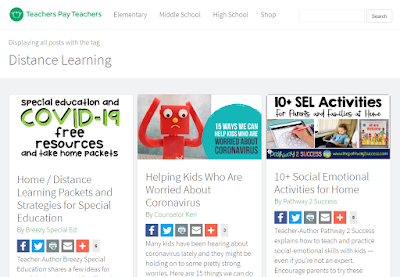
This morning, Teachers Pay Teachers even assembled a FREE assortment of helpful resources, the first of which I know is on the minds of the district staff on how to equitably instruct our SpEd students during this time of school closures. Check it out above!